Summary
Microsoft 365 produces the same alert whether a sign-in is a sales rep on hotel Wi-Fi or an attacker holding a stolen session token. This guide consolidates Microsoft’s scattered investigation guidance into a three-check triage method MSP engineers can apply to any alert: is this normal for the user, does the tenant’s configuration allow it, and is anything else happening across the tenant at the same time? It includes a decision flowchart, a reference table for the six detections MSPs see most, and three triage traps that catch experienced teams.
|
Time to read |
~9 minutes |
|
What you’ll learn |
|
|
Next steps |
|
Versioned Specifics:
- Original publication date: 2 November 2026
- Key problems addressed: alert fatigue, false-positive triage, Microsoft 365 identity and mailbox compromise, multi-tenant alert handling
- Relevant inforcer solutions: inforcer TDR, 365 Manager
How to tell if an alert is noise or a threat
Imagine that an impossible travel alert lands in your queue at 9:14 on a Tuesday: a user who signed in from Manchester at 8:50 has just signed in from Frankfurt.
Nine times out of ten, this is a VPN, a mobile carrier routing traffic through another country, or someone who actually got on a plane. But the tenth time, it could be an attacker replaying a session token they stole last week, meaning there’s probably about 40 minutes before they create the inbox rule that forwards every invoice to an external address.
MSPs need a fast and reliable way to distinguish the genuine threat signals from the false positives.
The most efficient way to do that is with threat detection and response tooling for MSPs. inforcer TDR automatically correlates alerts from across the Microsoft 365 environment and places each one in context, so only the alerts that represent a genuine threat need a technician’s attention. But engineers still benefit from keeping their own triage skills sharp, and a few quick checks are enough to qualify most alerts.
This guide walks through those checks, the detections they apply to most often, and the traps that catch even experienced engineers.
Why MSPs can’t always tell whether an alert came from routine activity or a breach in progress
Microsoft 365 detections work by spotting deviations from a pattern. Common examples include:
- A sign-in from an unfamiliar location, device or browser
- A session token used from a new IP address or device
- An app granted access it hasn’t had before
- A mailbox rule created where one didn’t exist
Attackers commonly produce these signals. But so can legitimate users during normal business operations.
Microsoft documents this openly in its Entra ID Protection risk detection reference, which describes known causes of false positives for each detection. For example:
- The anonymous IP address detection covers anonymizing VPNs, so when a customer rolls out a VPN, legitimate users trigger it.
- The unfamiliar sign-in properties detection compares each sign-in to the user’s history, so it fires more often on legacy authentication and stays silent for roughly the first five days of a new account while it learns what “familiar” looks like.
That doesn’t mean the system producing these alerts is broken. They are actually doing exactly what they’re supposed to do, which is flag something unusual that happened. The problem is that a single alert in isolation doesn’t give you enough information to know why it happened.
This often makes triage difficult. Working out what produced an alert is challenging when the alert arrives without context, and investigating each one manually creates a second problem: the time and resources to do so manually.
Across the MSPs we work with, 100 to 200 alerts a week is typical and each one takes 15 to 30 minutes to assess properly. This means the work is spread across several engineers over many hours. Fatigue and handovers leave room for human error, increasing the likelihood that genuine threats may be missed.
The problem is not unique to MSPs. Microsoft’s own research with Omdia found that 46% of alerts turn out to be false positives and 42% are never investigated at all, and that survey covered enterprise security teams with far more hands than a typical MSP.
So the question becomes: what does proper triage look like when it has to be done in minutes, by different people, for an MSP managing dozens or hundreds of tenants at once?
Three checks to help your MSP separate noise from potential threats
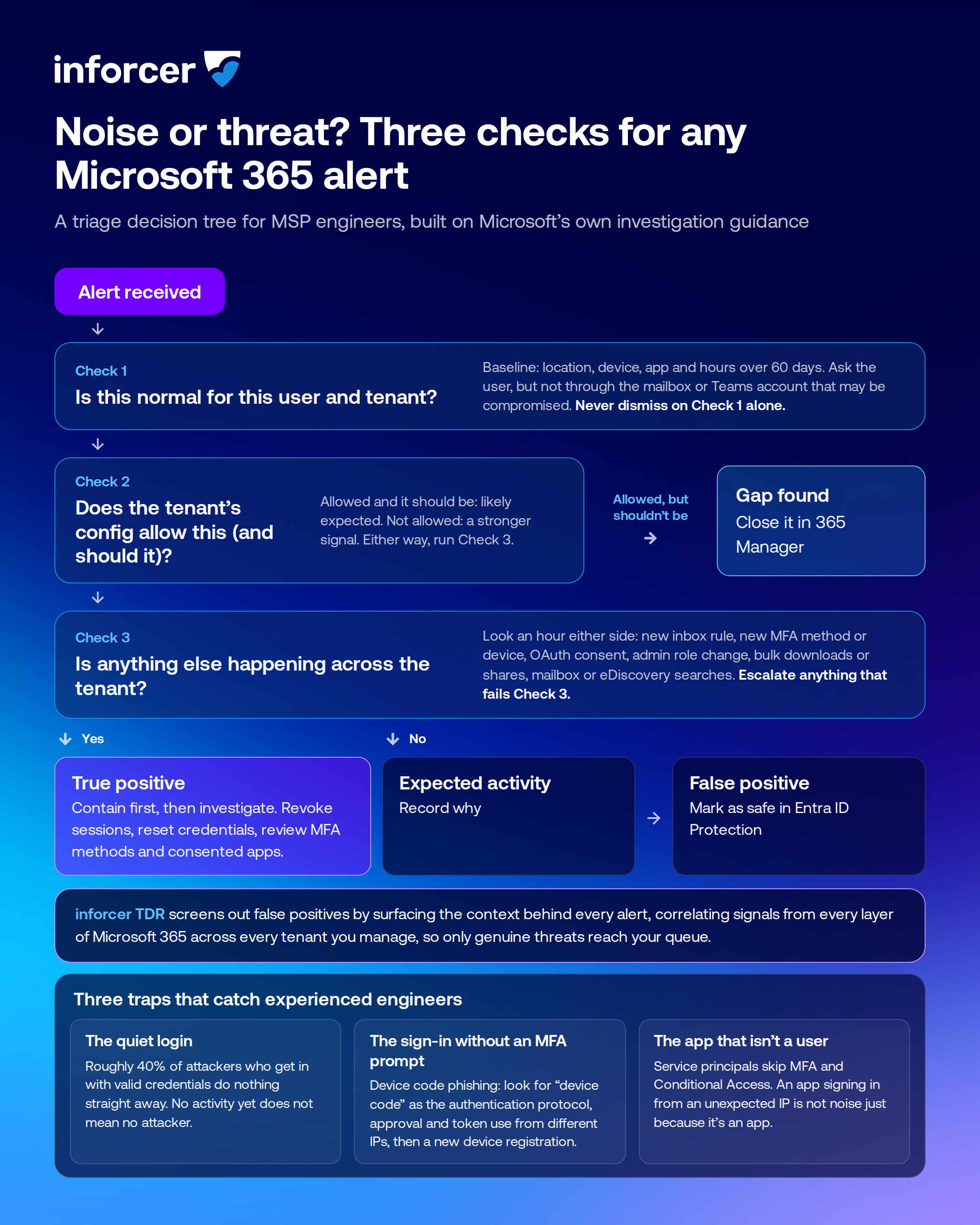
Microsoft’s investigation guidance for risky sign-ins comes down to a short list of questions: is this a normal app, device, location, IP address and user agent for this user, are there related alerts elsewhere, and has anything been touched since? We’ve condensed that into three relatively quick checks a technician can run in order against any Microsoft 365 alert. The flowchart at the end of this section makes it easy for you to run through them yourself.
Check 1: Is this normal for this user and this tenant?
Before anything else, establish the baseline. Where does this person usually sign in from, on what device, through which apps, at what hours?
Microsoft’s alert classification playbook for inbox manipulation rules uses a 60-day window of ISP, country and user agent for exactly this purpose. If the alert matches an established pattern (the same person, the same VPN exit, the same Thursday-night login from home, etc.), it points to the activity as being legitimate. But if the user is new, travelling, or has just changed devices, the evidence is less compelling and you should avoid jumping to this conclusion.
Ask the user, but not through the mailbox or Teams account that may be compromised. Microsoft is explicit on this point, and it is one of the most common mistakes we see.
Check 2: Does the tenant’s configuration allow this (and should it)?
Most triage guides skip this check, but MSPs are in an excellent position to perform it because they are typically the ones who set the tenant’s policies in the first place. A few questions cover most alerts:
- Does Conditional Access permit sign-ins from this country?
- Is legacy authentication still enabled?
- Can users consent to third-party apps themselves, or does consent require an admin?
- Is the device code flow blocked?
If the tenant’s policy permits the activity, the alert may be a sign of normal business activity. Most tenants have to leave some gaps open to stay usable for the people who work in them, a trade-off we looked at in our analysis of alert fatigue. But this alone is not definitive, which is why the third check is still necessary.
If you discover in the process of this check that the tenant’s policy permits something it shouldn’t, the alert has done something more useful than tell you whether one sign-in was legitimate: it has shown you a gap. Either way, you have context you couldn’t get from looking at the alert in isolation.
Check 3: Is anything else happening across the tenant?
A single signal raises a possibility. A second signal from a different layer of Microsoft 365 turns it into a story about where the alert came from and why.
Identity-only detection is not enough to provide this kind of context; an identity tool can see a sign-in but not the mailbox rule, the app consent or the file download that follows it. We covered this in The six layers of TDR for Microsoft 365.
Look for what happened in the hour on either side of the alert, including:
- A new inbox rule
- A new MFA method or device registered to the account
- An OAuth app consented with broad permissions
- A change to an admin role
- An unusual volume of file downloads or external shares
- Mailbox searches
- An eDiscovery search no one scheduled
Microsoft’s guidance on responding to a compromised email account and on investigating leaked credentials lists several of these as the main indicators to hunt for once a risky sign-in is confirmed.
Reaching a verdict
Two rules apply before you classify anything: escalate any alert that fails Check 3, and never dismiss an alert on Check 1 alone.
Microsoft Defender XDR classifies alerts three ways, and we recommend MSPs train their engineers on the same system, so every verdict is consistent, documented, and aligned with Microsoft’s own recommendations:
- True positive: the activity is malicious. Contain it first (revoke sessions, reset credentials, review MFA methods and consented apps), then investigate how far the attacker got and what they touched.
- Informational, expected activity: the activity is unusual but legitimate: a sanctioned VPN, a security test, a trusted app behaving as designed. Record why so the next engineer doesn’t waste time looking into it.
- False positive: the detection triggered, but the activity it describes never happened, such as an impossible travel alert caused by an IP address that geolocates to the wrong country. Mark it as safe in Entra ID Protection, which feeds back into Microsoft’s risk detection.
Assessing common alerts as benign vs. genuine threat signals
The checks above apply to any alert. The table below shows how they play out for the six detections MSPs see most often, drawing on Microsoft’s own documentation of each (sources are listed below the table).
|
Detection |
What it means |
Benign explanations |
Signals that flip the verdict |
Leans |
|
Atypical / impossible travel |
Two sign-ins from locations too far apart to travel between in the time elapsed |
VPN or cloud proxy, mobile carrier routing, genuine travel, a shared account used from two offices |
Follow-on inbox rule, new MFA method, OAuth consent or bulk downloads; sign-in from a datacentre or hosting IP rather than a residential one; client IP type matters more than the country |
Expected activity unless corroborated |
|
Anonymous IP address |
Sign-in from a Tor exit node or anonymizing VPN |
A sanctioned corporate VPN (Microsoft recommends adding its ranges to named locations); privacy-conscious users on personal devices |
Same IP used by several accounts in the tenant; activity after sign-in; account not normally on VPN |
Expected activity if the VPN is known; otherwise investigate |
|
Unfamiliar sign-in properties |
Device, browser, location or IP outside the user’s learned pattern |
New hardware, a new browser, travel, a user in their first days (detection is in learning mode); legacy auth is more prone to false positives |
New device registration shortly after, especially combined with a device code sign-in; MFA prompt approved from an unfamiliar ASN |
Depends almost entirely on Check 3 |
|
New OAuth app consent |
A user has granted a third-party app delegated access to mail, files or contacts |
Legitimate SaaS integrations, calendar tools, document signing, the MSP’s own tooling |
Unverified publisher; broad scopes (full mailbox read/write, offline access); app name imitating a Microsoft product; consent granted minutes after a phishing click; multiple users consenting to the same unknown app |
Investigate by default; MFA offers no protection here (see our OAuth consent phishing explainer) |
|
New inbox rule |
A rule created to forward, move, mark as read or delete messages |
Users genuinely filter mail; marketing folders; out-of-office handling |
Rule forwards externally; deletes or moves to RSS Feeds, Notes or Junk; keywords like invoice, payment, password, do not reply; no filter at all; rule created from an unfamiliar ISP or after a risky sign-in |
Leans true positive when the rule hides mail rather than organizes it |
|
New MFA method or device registered |
A new authenticator, phone number or device added to the account |
Phone upgrades, onboarding, a user re-enrolling after a reset |
Registration follows a risky sign-in; registration from a different IP than the user’s normal activity; two methods added in quick succession |
Investigate when it follows anything on this list |
This table shows common examples, but it is not a substitute for your own judgement. To assess any of these alerts yourself, go back to the checks in the previous section.
Checks 1 and 2 will help you find potentially benign explanations, but you still need Check 3 to make sure there isn’t a malicious reason for the alert as well. Without the ability to run that check, an engineer doesn’t have the information they need to make an accurate call about what they’re seeing.
Sources:
- What are risk detections? (Microsoft Entra ID Protection)
- How to investigate risk (Microsoft Entra ID Protection)
- Alert classification for suspicious inbox manipulation rules (Microsoft Defender XDR)
- Responding to a compromised email account (Microsoft 365)
- Investigate alerts in Microsoft Defender XDR
Three triage traps that often confuse experienced technicians
Some alerts confuse even experienced engineers. Here are three of the most common ones we see:
The quiet login
The instinct after a suspicious sign-in is to look for what the attacker did next. But increasingly, the answer is nothing. Expel’s 2026 threat report found that in roughly 40% of cases where an attacker gained access with valid credentials, they signed in and took no further action. Sometimes the access is being sold to another party, and sometimes the attacker is waiting for the right moment to strike “No follow-on activity” is a reason to keep watching, not a reason to close the ticket.
The sign-in without an MFA prompt
Device code phishing persuades a user to enter a short code on a legitimate Microsoft page, which hands the attacker a token without a password or an MFA challenge ever being presented to them. Push Security measured a 37.5-fold rise in device code phishing since the start of 2026 as ready-made kits spread.
The tell in the sign-in log is an authentication protocol of “device code”, often with the approval and the token use coming from different IP addresses, followed by a new device registration. If Check 2 shows the tenant still allows the device code flow, that is a gap worth closing regardless of the verdict on the alert: Microsoft’s Conditional Access authentication flows control can block it.
The app that isn’t a user
Not every sign-in belongs to a person. Service principals (the identities that apps use to act on a tenant) sign in with their own credentials, and Conditional Access and MFA don’t apply to them. On 15 October, sign-ins through a widely installed backup app arrived from a rented server and, in two tenants, the app granted itself Exchange Administrator.
Our colleague Dan Harris wrote up the full investigation and the checks to run on your own tenants. The relevant lesson here for triage is that an app signing in from an unexpected IP is not necessarily noise just because it’s an app.
Why manually investigating every alert isn’t feasible for multi-tenant MSPs
Manually assessing one alert with the system we’ve described above only takes a few minutes, but running it on 150 separate alerts across 40 tenants with different baselines and policies is unsustainable. Nobody can hold 40 baselines in their head, and the 60-day query that answers Check 1 is not something anyone has time to run 150 times a week.
What MSPs need is a solution that analyzes alert signals for them and puts each one in proper context, so engineers can focus on the alerts that represent genuine security concerns. inforcer TDR and 365 Manager make this possible by running the three checks for you:
- Check 1, is this normal? inforcer TDR collects telemetry from every layer of Microsoft 365 within each tenant, so every signal is read alongside the user’s and the tenant’s other activity rather than on its own. An impossible travel sign-in explained by a VPN, with nothing happening after it, never reaches your queue.
- Check 2, does the configuration allow it? 365 Manager already holds the answer, because the MSP sets and maintains every tenant’s configuration from the same dashboard, assessed against recognized security frameworks. When inforcer TDR confirms an incident, its prevention tab names the controls that would likely have stopped it, and 365 Manager pushes the fix to every tenant that needs it without a single per-tenant login.
- Check 3, is anything else happening? inforcer TDR correlates signals that arrive separately into a single incident with a plain-English narrative tracing the activity back to the entry point, and screens out alerts that stay isolated. Only alerts where the telemetry indicates a genuine threat are surfaced.
The verdict no longer depends on which technician picks up the ticket. Our specialist team trains and maintains the detections rather than leaving an AI to decide what a threat is, and partners see incidents for every tenant in a single view.
Give your MSP an efficient system for categorizing alert signals
Many of the alerts an MSP receives turn out to be benign, but the method in this guide exists for the ones that aren’t, and for making sure the answer doesn’t depend on who’s on shift.
Use the flowchart above and run the three checks on the next alert you’re tempted to dismiss. Then see how inforcer TDR scales this process across every tenant you manage, so your team can spend its time addressing threats instead of trying to spot them.
Scope & Limitation Statement
This guide covers triage for Microsoft 365 alerts raised by Microsoft Entra ID Protection and Microsoft Defender XDR, based on Microsoft’s published investigation guidance as of October 2026. It doesn’t cover alerts from non-Microsoft tools or full incident response and forensic procedures. The method and reference table are a starting point, not a substitute for an engineer’s own judgement. Detection names and behaviours change over time, availability depends on each tenant’s licensing, and the alert volume figures reflect the MSPs we work with rather than an industry benchmark.
FAQs
Is impossible travel always a security incident?
No. Impossible travel fires whenever two sign-ins occur from locations too far apart to travel between in the time elapsed, and VPNs, cloud proxies, mobile carrier routing and genuine travel all trigger it. Microsoft documents this in its risk detection reference. It is more likely to represent an incident when it’s followed by other activity, such as a new inbox rule, MFA method or OAuth consent.
What is an “informational” or “expected activity” alert in Microsoft Defender?
Microsoft Defender XDR lets you classify an alert as true positive, false positive, or informational (expected activity). Informational means the detection worked correctly on activity that was unusual but legitimate, such as a sanctioned VPN, a penetration test, or a trusted app behaving as designed. Recording these reasons reduces wasted time by preventing other engineers from needlessly investigating alerts that are produced by routine business activity in the tenant.
What are the signs a Microsoft 365 account has been compromised?
Microsoft’s compromised-account guidance lists inbox rules that forward, delete or hide messages, mail forwarding to unknown addresses, unexpected sent items, new MFA methods or devices, consented apps the user doesn’t recognize, admin role changes, and bulk downloads. Any of these following a risky sign-in should be treated as a potential threat until proven otherwise.
Should MSPs tune out noisy Microsoft 365 detections?
Carefully, and never as a substitute for triage. Microsoft’s own tuning guidance warns that suppression rules can hide real threats, because the rule that silences a VPN user’s impossible travel alert also silences an attacker using the same kind of IP. Tuning works best for well-defined, documented exceptions, with correlation across layers handling everything else.
How does inforcer TDR reduce false positives?
inforcer TDR collects telemetry from every layer of Microsoft 365 within each tenant and correlates signals into incidents, so isolated events that never lead anywhere are screened out while related activity surfaces as one readable incident. Our specialist team trains and maintains the detections, and partners see every tenant’s incidents in a single view.
Share this

What the 2026 Microsoft Digital Defense Report Means for MSPs

AI-Powered, Human Controlled: The SOC Is Evolving